Video 1: create your AI influencer's face from scratch
The video and its resources are free in the AI Empire Skool.
Video 1 makes your AI influencer’s face from a text prompt. You deploy our template on a rented RunPod RTX 4090 ($0.74 an hour as of 2 Oct 2026), get three prompts from a ChatGPT helper, run them in ComfyUI and save the faces you like. No GPU budget yet? Our Discord generator makes 10 faces a day for free.
Affiliate note: RunPod and Fanvue links on this page are referral links. If you sign up through them, AI Empire may earn credits or a commission. You pay the same. How this works.
On this page
- What do you need before you start?
- How do you deploy the face template on RunPod?
- How do you write her prompt with ChatGPT?
- How do you load the workflow in ComfyUI?
- How do you pick her face?
- How do you stop paying for the pod?
- How do you make faces for free in the Discord?
- What comes after video 1?
- What can go wrong?
What do you need before you start?
You need a RunPod account and the free AI Empire Skool. Everything for this video sits in the Skool classroom, Phase 2, in the lesson “Generate Your First Face”: the RunPod template, the prompt for ChatGPT and the ComfyUI workflow. The video 1 files are free. Want to skip RunPod for now? Jump to the free Discord generator below.
- A RunPod account with some credit. You pay for the GPU by the hour, only while the pod runs.
- The AI Empire Skool. It’s free to join: start from the free course page.
- In the Skool classroom, open Phase 2 and the lesson “Generate Your First Face”.
How do you deploy the face template on RunPod?
Click the RunPod template in the Skool lesson, then Configure Pod. The video picks the RTX 4090, at $0.74 an hour as of 2 Oct 2026. Add a volume disk, then deploy. The template is called AI Influencer Maker, and the pod takes about 10 minutes to be ready, so write her prompt while you wait.
Deploy the face template on RunPod
- In the “Generate Your First Face” lesson, click the RunPod template.
- Click Configure Pod.
- Pick the GPU. The video goes with the RTX 4090.
- Click Add volume, choose Volume disk and click Add volume disk.
- Click Deploy Pod and wait. It can take about 10 minutes.
Many GPUs were busy when the video was made, so it shows which ones work:
| GPU | In the video (2 Oct 2026) |
|---|---|
| RTX 4090 | Best pick, the one the video uses, $0.74 an hour |
| RTX 5090 | Fastest |
| RTX 3090 | Slowest |
How do you write her prompt with ChatGPT?
While the pod loads, copy the prompt from the Skool lesson and paste it into ChatGPT, or whatever chatbot you use. It asks a list of questions about her look. You don’t have to answer them all: a few plain words work. You get three prompts back, ready to paste into the workflow.
- Copy the ChatGPT prompt from the “Generate Your First Face” lesson.
- Paste it into ChatGPT and send it.
- Answer its questions, or describe her in one line. The video sends: brunette, brown eyes, European, about 20 years old, cute.
- Keep the three prompts it gives you. Each one starts with
igbaddie, the trigger word of the LoRA in the face workflow.
Want more help writing prompts? Our AI influencer prompt generator builds them in the course format.
How do you load the workflow in ComfyUI?
When the pod shows Ready, open ComfyUI from it. If you get an “access denied” error page, click the browser’s address bar and press Enter: it loads on the second try. Then download the workflow from the Skool lesson, drag it into ComfyUI, paste one of the three prompts and click Run.
- In RunPod, open your pod. Under Connect, wait for port 8188 to show Ready, then click ComfyUI.
- Access denied (HTTP error 403)? Click the address bar and press Enter.
- Back in the Skool lesson, scroll down and download the workflow file.
- Drag the file into ComfyUI. The face workflow opens.
- Paste one of your three prompts into the prompt box and click Run.
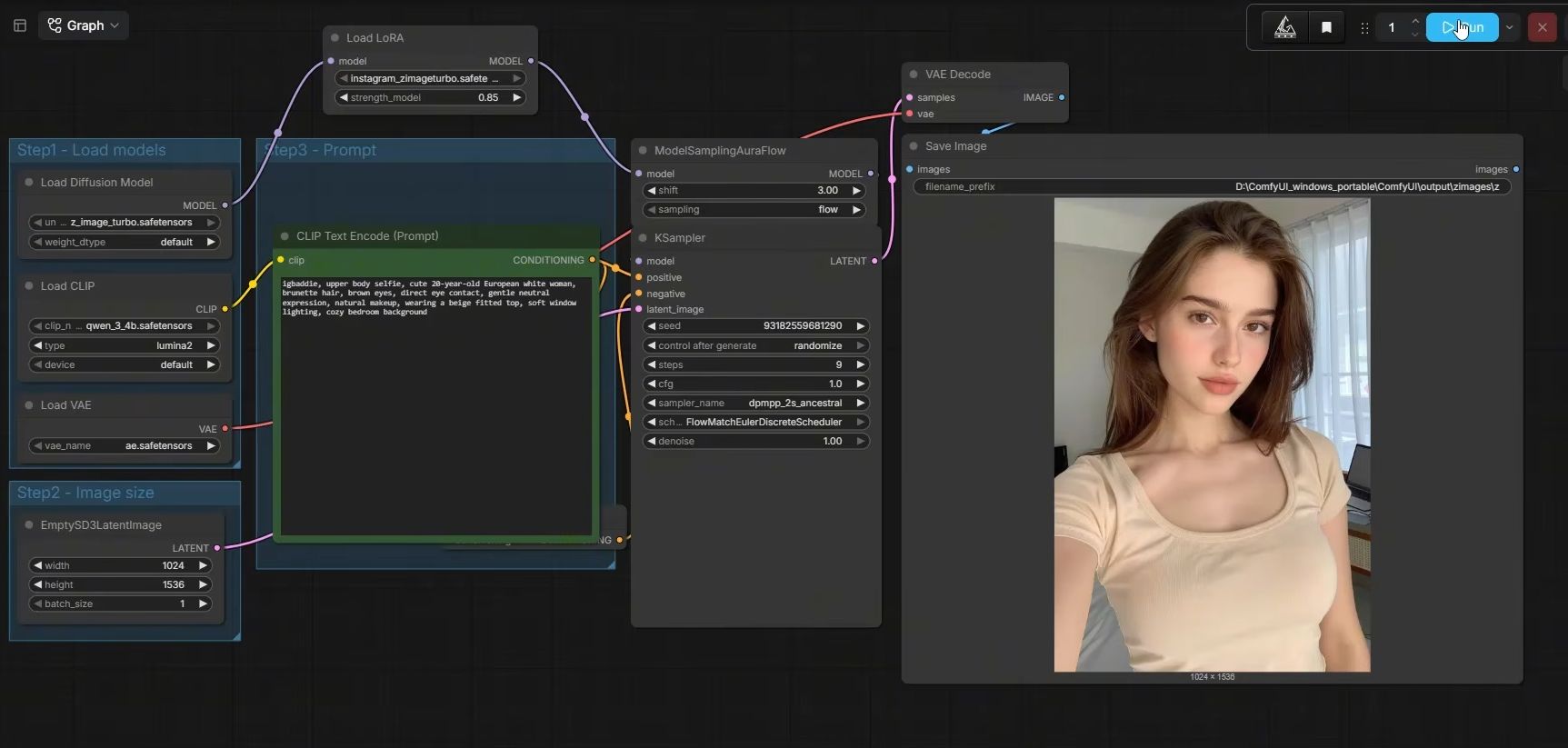
Every setting in this workflow, and why it’s set that way, is in Z-Image Turbo settings.
How do you pick her face?
Run the prompt a few times. Even with the same prompt, every run gives you a different face. Save each one you like. If you don’t like what a prompt makes, ask ChatGPT to change something, like a smaller nose. You need a portrait: a clear shot of her face, because video 2 starts from one.
- Click Run again with the same prompt, or paste another of the three.
- Save every face you like. The video saves 10 to 20, then picks one.
- Not happy? Ask ChatGPT to change one thing and run the new prompt.
- Check your pick is a portrait. A nice image that isn’t a portrait won’t work for the next step.
This step is only about finding the right face. Don’t worry that every run looks like someone new: video 2 and video 3 are what keep her face the same. More on that in how to keep your AI character’s face the same.
How do you stop paying for the pod?
Once you’ve downloaded your faces, close the ComfyUI tab, go back to RunPod, stop the pod and then terminate it. Do both. A pod you leave running keeps charging you by the hour whether you use it or not, so make this the last thing you do every time you finish on RunPod.
- Close the ComfyUI tab.
- In RunPod, click Stop on the pod.
- Click Terminate.
Why terminate as well as stop: see terminate in the glossary.
How do you make faces for free in the Discord?
If you just want to try a few portraits, or save money, use our free face generator in the Discord. Get the access code from the Skool lesson “Discord Generator”, verify in the Discord’s #unlock channel, then type /face and paste a prompt from ChatGPT. You get 10 images a day.
- In the Skool classroom, Phase 2, open the lesson Discord Generator and copy the code. It changes every week, so use the one in the lesson.
- Join the Discord through the link in the lesson.
- Go to the
#unlockchannel, click Verify and enter the code. - Open the
#face-generatorchannel, type/face, press space and paste your prompt.
More on the free route on the free course page.
What comes after video 1?
You have her face: one portrait you like. Video 2 turns that one face into a full dataset of her with one click, using the Dataset Maker on RunPod. That dataset is what video 3 uses to train her LoRA, and video 4 builds a Telegram bot that sends you new photos of her on demand.
Next: video 2, turn one face into a 50-image dataset. The whole series is on the free course page.
What can go wrong?
- ComfyUI says access denied. Click into the address bar and press Enter. It loads on the second try.
- Your GPU isn’t available. Many are busy. Pick another from the list: RTX 4090, RTX 5090 or RTX 3090.
- Every face looks different. That’s normal at this stage, even with the same prompt. Save the ones you like and pick one.
- Your favourite image isn’t a portrait. Video 2 needs a portrait. Run again or try another prompt.
- The Discord code doesn’t work. It changes every week. Copy the current one from the “Discord Generator” lesson.
- The RunPod bill keeps going. Stop the pod, then terminate it.
Questions people ask
Do I need a RunPod account for video 1?
Which GPU should I pick?
Why does the same prompt give me a different face?
What is igbaddie at the start of every prompt?
Where do I get the Discord code?
Read next
- How to create an AI influencer in 2026, step by step
One original face, a 50-image dataset, a character LoRA you own, the AI label on, then growth and Fanvue. Real steps, settings and GPU costs.
- Video 2: turn one face into a 50-image LoRA dataset
Video 2 of 4: the AI Empire Dataset Maker turns one AI face into 50 captioned photos on RunPod in 30 minutes to 2 hours. Every step from the video.
- Z-Image Turbo settings: the exact values in our face workflow
The Z-Image Turbo settings our face workflow runs: 9 steps, CFG 1, shift 3, dpmpp_2s_ancestral, 1024×1536. Why each value, and what breaks.