Video 3: train her character LoRA in AI Toolkit
The video is free. The workflow files and templates for it are in AI Empire Premium, $25/month. $47/month from 20 Oct 2026.
You train your character’s LoRA by uploading her 50-image dataset to AI Toolkit on a rented RTX PRO 6000, setting up one job and pressing Start. Training takes 2 to 3 hours. Then you download the 2000, 2500 and 3000-step files, load them in a Krea 2 Turbo generator and keep the one that looks most like her.
Affiliate note: RunPod and Fanvue links on this page are referral links. If you sign up through them, AI Empire may earn credits or a commission. You pay the same. How this works.
What do you need before you start?
You need her dataset from video 2, the trigger word you used there, and a RunPod account with some credit. The trainer and generator templates, the model_kwargs snippet, the two ChatGPT prompts and the generator workflow are in Phase 3 of the Skool classroom. Those resources are part of AI Empire Premium.
- Her dataset from video 2: the
.zipfrom the Dataset Maker, unzipped into a folder on your computer. - Her trigger word. The Dataset Maker’s default is
zvx woman. - A RunPod account with credit.
- Phase 3 of the Skool classroom: the LoRA training lesson.
Get the template in AI Empire Premium
Why train on an RTX PRO 6000?
Because it trains at full power. On a smaller card like the RTX 5090, the trainer switches to a lighter mode by default: it needs quantization and Low VRAM, and that gives a worse LoRA. The RTX PRO 6000 has 96 GB of VRAM, so every quality setting stays on. Training takes 2 to 3 hours.
- Open the trainer template from the LoRA training lesson in Phase 3 and click Configure Pod.
- Pick the RTX PRO 6000.
- Scroll down, add a volume disk and deploy the pod. It takes about 5 to 10 minutes to start.
How do you upload her dataset?
Straight into AI Toolkit. Open it from the pod, make a new dataset and drag her photos in. You use the unzipped folder from video 2, so the whole set of photos and captions lands in one go. Before you move on, look through it: every photo should be the same face from video 1.
- Open AI Toolkit from the pod’s Connect menu.
- Click New Dataset, give it a name (the video uses “my AI girl”) and click Create.
- Open her unzipped dataset folder, select everything in it and drag it into the dataset.
- Check the photos. Every one should look like her.
Which settings does the training job use?
Click New Job and set the values in this table. Most are switches and dropdowns. The training name can be anything. The trigger word must be the same one her dataset captions start with, letter for letter. Three things need extra care: the model’s name or path, the model_kwargs snippet and the sample prompts.
| Setting | Value |
|---|---|
| Training name | Anything |
| Trigger word | Same as her dataset, e.g. zvx woman |
| Model architecture | Krea 2 (Raw) |
| Name or path | Comfy-Org/Krea-2 |
| Low VRAM | Off |
| Quantization | None / none |
| Layer offloading | Off |
| Rank | 64 |
| Timestep | Sigmoid |
| Resolution | 1024 |
| Steps | 3000 |
| Learning rate | 1e-4 |
| Save every | 250 steps |
| Max step saves to keep | 12 |
| Sample every | 500 steps |
| Sample size | 1024 × 1280 |
| Sample prompts | 10, written by ChatGPT |
- Sample prompts. Paste the sample-prompt prompt from the Skool lesson into ChatGPT, put your trigger word in it and send it. Paste the 10 prompts you get into the sample prompt boxes, one by one.
- Name or path. Type
Comfy-Org/Krea-2. Skip it and the job won’t work. - model_kwargs. Click Show Advanced, press Ctrl+F and search for
model. Findmodel_kwargsand paste the snippet from the Skool lesson exactly where the video shows. - Create the job, then press Start. You can close the tab while it trains.
How do you download the finished LoRA?
When the job is done, go to Queue, click View all and open the completed job. Download three files: the one without a step number, which is the final LoRA at 3000 steps, plus the 2500 and 2000 saves. Wait until all three are on your computer, then stop and terminate the pod.
- Queue → View all → click the completed job.
- Download the file without a number (the final one, 3000 steps).
- Download the 2500 and 2000 files.
- Once all three are on your computer, stop and terminate the pod.
How do you make photos with her LoRA?
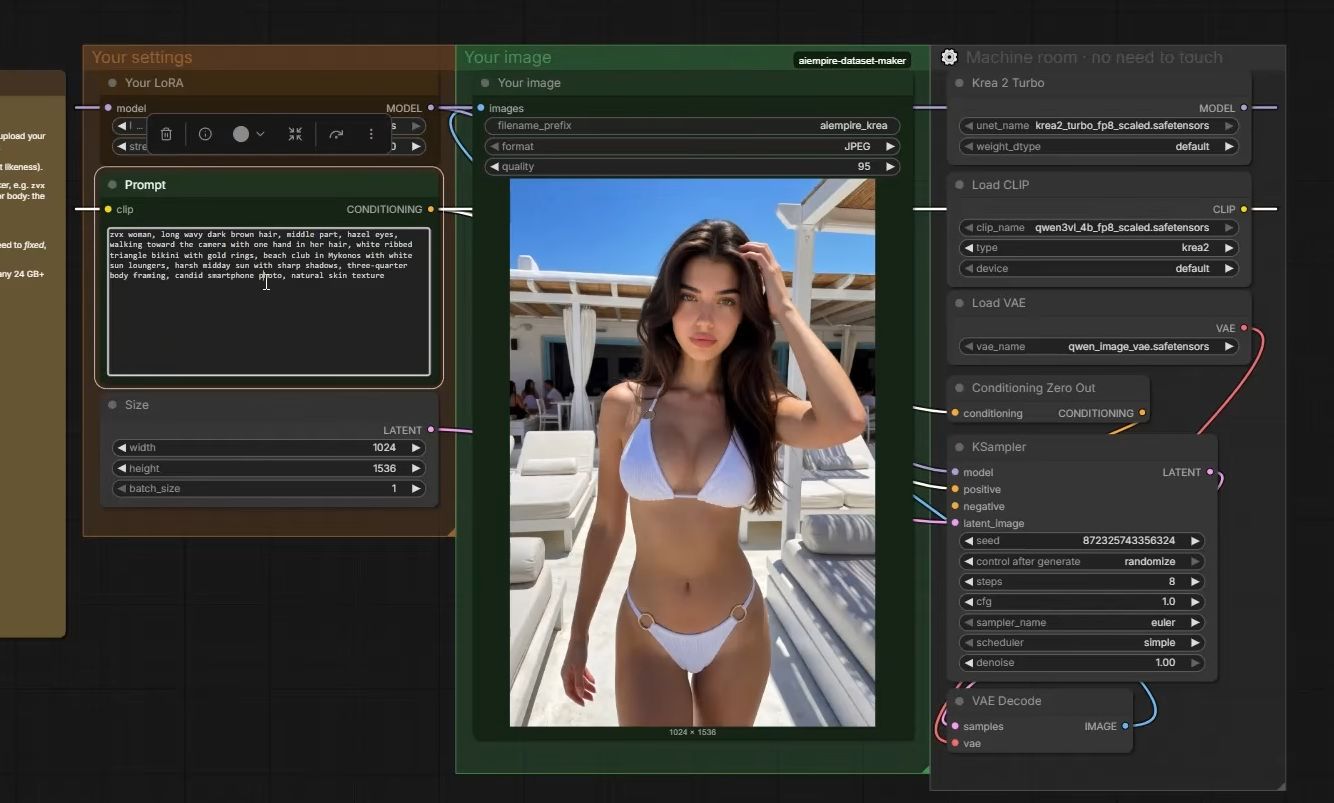
With a second template: the Krea 2 Turbo generator. It runs on any 24 GB+ GPU; the video uses the RTX PRO 6000 again. You upload your three LoRA files to it in JupyterLab, load the workflow from Skool in ComfyUI, pick a LoRA, paste a prompt and press Run.
Get the template in AI Empire Premium
- Open the generator template from Skool, click Configure Pod, pick a 24 GB+ GPU, add a volume disk and deploy.
- While it starts, get prompts: paste the generator prompt from Skool into ChatGPT with her trigger word and her hair-and-eyes line from video 2.
- Open JupyterLab, go to
models/lorasand upload all three LoRA files. Together they’re about 1.5 GB, so stay on the tab until the upload finishes. - Open ComfyUI from the pod and drag in the generator workflow from Skool. Press R so your LoRAs show up.
- Pick a LoRA, paste a prompt and press Run.
| Generator setting | Value |
|---|---|
| LoRA strength | 0.9 |
| Steps | 8 |
| CFG | 1 |
| Sampler / scheduler | euler / simple |
| Size | 1024 × 1536 |
Which checkpoint should you keep?
The one that looks most like her. Run the same prompt with the 3000, 2000 and 2500 files, one after the other. The final file should be the highest quality, but it isn’t always. Too many steps can make her face look plastic. In the video all three looked close, and the 2500 file was the keeper.
For a stricter side-by-side with fixed seeds, see how to test a LoRA.

Every prompt starts with her trigger word and a short hair-and-eyes line, then the scene: photo type, pose, outfit, place, light and framing. Don’t describe her face or body: the LoRA knows them. For example:
zvx woman, long wavy dark brown hair, middle part, hazel eyes, mirror selfie in a bright hotel bathroom, holding her phone at chest height, oversized cream knit sweater and denim shorts, white marble counter behind her, soft daylight from a window, waist-up framing, candid smartphone photo, natural skin textureThe free prompt generator writes prompts in the same format. This LoRA is made for safe-for-work photos, like the ones you post on Instagram.
What can go wrong?
- The job won’t run. Check the name or path (
Comfy-Org/Krea-2) and themodel_kwargssnippet under Show Advanced. Both are easy to miss. - You trained on a smaller card. It switched to quantization and Low VRAM, so the LoRA is weaker. Train again on an RTX PRO 6000.
- Not her face. Start the prompt with exactly the trigger word you trained with.
- Plastic skin. Try the 2500 or 2000 file instead of the final one.
- ComfyUI shows an error the first time. Click into the address bar and press Enter.
- Your LoRA isn’t in the list. Wait for the upload to finish in JupyterLab, then press R in ComfyUI.
- The bill keeps running. Download your files, then stop and terminate both pods.
What comes after video 3?
Video 4 builds a private Telegram bot that makes photos of her from a text prompt, using the LoRA you just trained. You text it a scene and her photo comes back in the chat. If you skipped a step, the whole free series is on the free course page, in order.
- Next: video 4, a private Telegram bot for her.
- The whole series: the free course.
Questions people ask
Which GPU do I need to train a character LoRA?
How long does LoRA training take?
Which checkpoint should I keep?
Can I make photos of her on a smaller GPU?
Do I need a Hugging Face account?
Read next
- Video 2: turn one face into a 50-image LoRA dataset
Video 2 of 4: the AI Empire Dataset Maker turns one AI face into 50 captioned photos on RunPod in 30 minutes to 2 hours. Every step from the video.
- Video 4: build a private Telegram bot that makes photos of your character
Step 4 of 4: a private Telegram bot that makes photos of your AI character. RunPod serverless and a free Cloudflare Worker. About 20 seconds a photo.
- How to test a LoRA and pick the right checkpoint
Compare the 2000, 2500 and final 3000-step files with the same prompt and seed, as video 3 of our course does. How to judge them and pick the keeper.