ComfyUI missing models: put each file in the right folder, with the right name
ComfyUI says a model is missing when the file a loader node names isn’t in the folder that node reads, with exactly that name. Our face workflow needs 4 files in 4 folders: diffusion_models, text_encoders, vae and loras. Put the file in the right folder, match the name, press R to refresh, and select it in the node. On RunPod, you upload through JupyterLab.
What does the missing models error mean?
ComfyUI checked a loader node and couldn’t find its file. You’ll see a missing-models warning when you load the workflow, or “Prompt outputs failed validation” with “Value not in list” when you press Run. The error names the node, the field and the file it wanted. An empty list at the end means that folder has nothing in it.
ComfyUI’s model troubleshooting page shows the shape of it: Value not in list: ckpt_name: 'model-name.safetensors' not in []. Read it as three parts:
- The field (
ckpt_name,unet_name,clip_name,vae_name,lora_name) tells you which kind of loader, and so which folder. - The file name is what the workflow was saved with. Your file has to be called exactly that, or you have to pick your file instead.
- The list is what ComfyUI did find in that folder. Empty means wrong folder or nothing uploaded.
ComfyUI’s templates docs say its missing-file check for templates (in the current version, checked 2 Oct 2026) only looks for a file with the same name at the top of the matching folder. A file in a subfolder can still trigger the warning even though the loader can use it.
Which file goes in which folder?
The loader node decides the folder, not the file. Here are the four loaders in our face workflow, the file each one names in the screenshot, and where that file has to sit. These match the folders in ComfyUI’s own Z-Image Turbo example, checked 2 October 2026.
| Node in the workflow | Field | File it asks for | Folder under ComfyUI/models |
|---|---|---|---|
| Load Diffusion Model | unet_name |
z_image_turbo.safetensors |
diffusion_models/ |
Load CLIP (type lumina2) |
clip_name |
qwen_3_4b.safetensors |
text_encoders/ |
| Load VAE | vae_name |
ae.safetensors |
vae/ |
| Load LoRA | lora_name |
the template’s LoRA, or your own LoRA | loras/ |
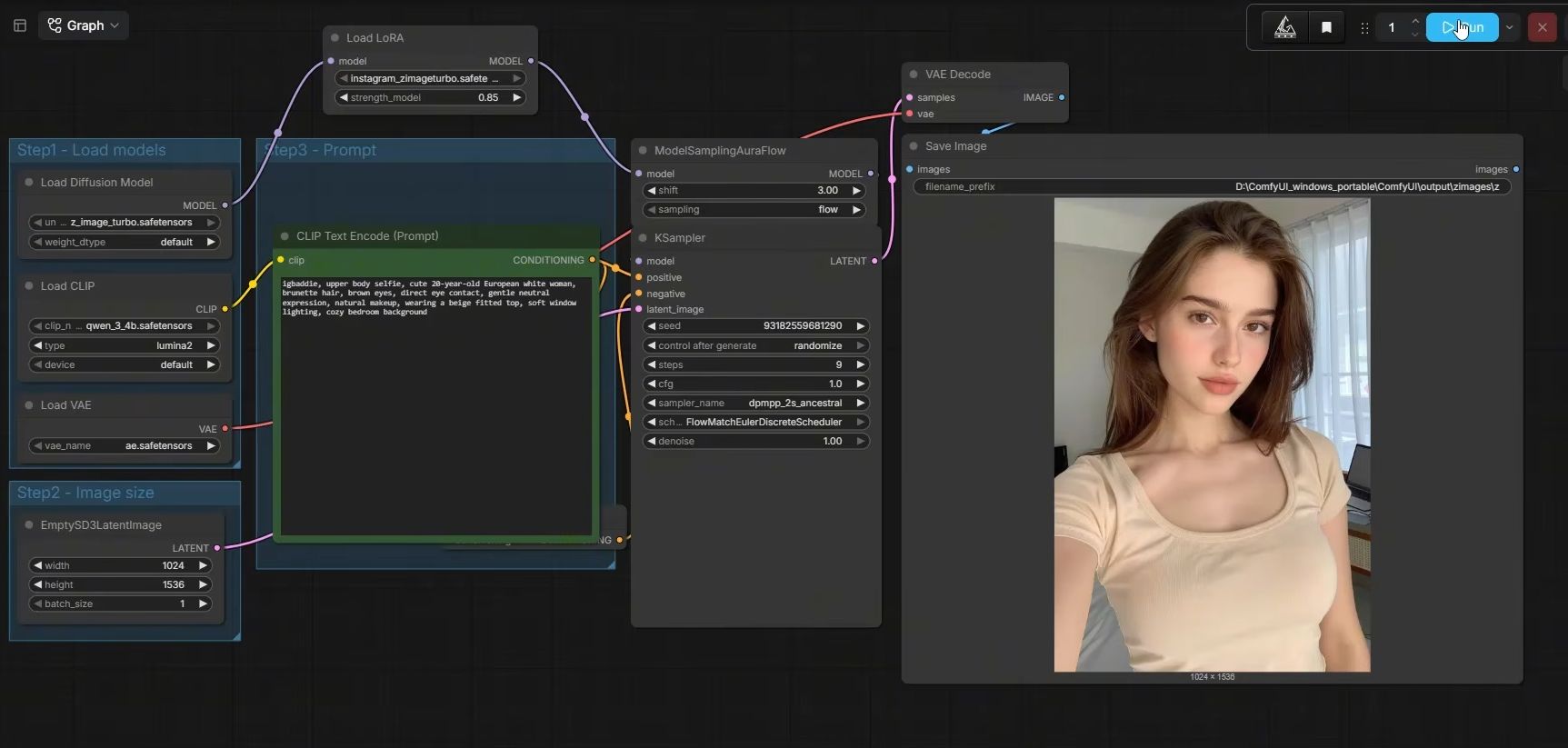
Other loaders you’ll meet: Load Checkpoint reads checkpoints/ (one file holding model, text encoder and VAE together), ControlNet loaders read controlnet/. Don’t put a LoRA in checkpoints/ or a full checkpoint in diffusion_models/: the right node won’t list it.
Why does the file name have to match exactly?
Because a saved workflow stores the file name, not the file. If the name in the node and the name on disk differ by one character, ComfyUI treats the model as missing. That includes case, the .safetensors extension, a “(1)” your browser added to a second download, and precision tags like _bf16 or _fp8.
The one that catches people with our face workflow: ComfyUI’s official Z-Image Turbo download is named z_image_turbo_bf16.safetensors. Our workflow’s loader shows z_image_turbo.safetensors. Same model family, different name, so the loader can’t find it.
Two fixes, pick one:
- Select your file in the node. Click the
unet_namefield and choosez_image_turbo_bf16.safetensorsfrom the list. Save the workflow so it remembers. - Rename the file on the pod to the name the workflow wants. Do this if you share the workflow with others who use that name.
Selecting in the dropdown is safer: you can see the file is really there.
How do you upload a model to a RunPod pod?
Open JupyterLab on port 8888, go into ComfyUI’s models folder, open the right subfolder and upload the file there. Then switch to ComfyUI on port 8188, press R to refresh its model lists and select the file in the loader. Small files like a LoRA upload fine through the browser; multi-gigabyte models are better pulled onto the pod directly.
- Open JupyterLab. On the pod page, connect to port 8888. Set
JUPYTER_PASSWORDwhen you deploy: without it, anyone with your pod’s URL can open it. - Find the models folder. In the file browser on the left, open the ComfyUI folder, then
models, then the subfolder from the table above. - Upload. Drag the file onto the file browser, or use the upload button (the arrow pointing up). Wait for the progress bar to finish. A half-uploaded file looks present but won’t load.
- For big files, download on the pod. Open a Terminal in JupyterLab,
cdinto the subfolder, and runwget -O <exact-file-name> "<direct download link>". It’s faster than uploading from home and you set the name as you go. On Hugging Face, the direct link has/resolve/in it; a/blob/link is the web page. - Refresh ComfyUI. In ComfyUI, press R. ComfyUI’s models docs say to restart if a file copied in by hand still doesn’t show.
- Select the file in the loader node and run.
For other ways to move files, RunPod’s file transfer docs list runpodctl, SCP and rsync. Our guide to moving files on and off a pod covers downloads too. Our workflow loading guide covers the steps before this one.
Why is a model missing on a template that should have it?
A template downloads its own models on first boot, so “missing” on a fresh template usually means the download hasn’t finished, you loaded a different workflow than the template’s, or the missing file is your own LoRA. Templates don’t ship your character: her LoRA is yours to upload. Each new pod starts empty of your files.
- First boot is still downloading. Our Dataset Maker template pulls about 30 GB on first boot. Watch the pod logs until it’s done, then reload.
- You brought your own workflow. It may name model files the template never downloads. Use the template’s workflow, or upload those files.
- It’s your LoRA. Upload it to
loras/every time you deploy a new pod, unless you keep it on a network volume. - You terminated and redeployed. Terminating deletes everything not on a network volume, as the RunPod guide explains. Download your LoRAs to your computer before you terminate.
What can go wrong?
- The file is in a subfolder. ComfyUI may still warn that it’s missing. If the loader’s dropdown lists it (as
subfolder/file.safetensors), select it and ignore the warning, per ComfyUI’s templates docs. - You can’t open the
checkpointsfolder in JupyterLab. A known JupyterLab quirk with that exact name; the workarounds are in uploading files to a pod. - The model loads with a “deserialization” or header error. The download or upload broke partway. ComfyUI’s docs say to download it again and check you have disk space.
- The disk is full. Our templates use a 100 GB volume and models fill it fast. Run
df -hin the Terminal; delete old outputs you’ve downloaded. - The download link saved a web page, not the model. A file of a few kilobytes is a page, not a model. Use the direct file link.
- You put the text encoder in
checkpoints/. Load CLIP readstext_encoders/. Move it. - “Value not in list” on
scheduler, not a model. Our face workflow uses the FlowMatchEulerDiscreteScheduler, which isn’t built into ComfyUI. If your install has no node pack that adds it, Run fails here. Which pack adds it: Z-Image Turbo settings. Install it and restart ComfyUI. Our face template has that pack built in, so this only happens on other installs. - A red node, not a missing model. That’s a missing custom node, a different problem: the node type itself isn’t installed.
Questions people ask
What does "Value not in list" mean in ComfyUI?
Where do I put models in ComfyUI?
I added the model but ComfyUI still says it's missing. Why?
Do I need ComfyUI Manager to download missing models?
Read next
- RunPod for AI images: templates, GPUs and what it costs
Rent a GPU by the hour instead of buying one. Which RunPod GPU to pick, what storage costs, how to run ComfyUI, and the stop vs terminate trap.